URP Realtime Shadows for Additional Lights
info
Supported from version 7.3.0 and only on WebGL 2
In Unity URP, additional lights are all light sources other than the main light.
- Off
- On
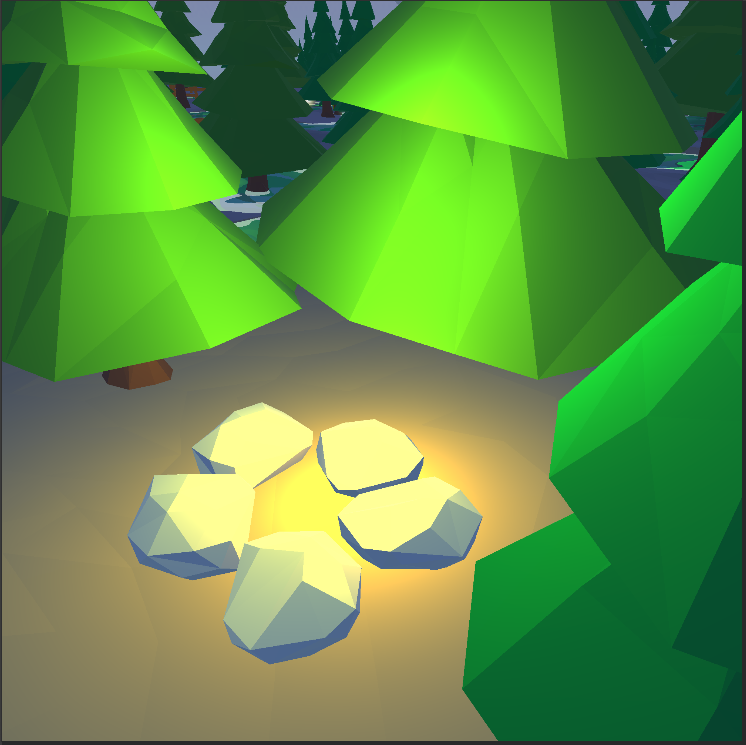
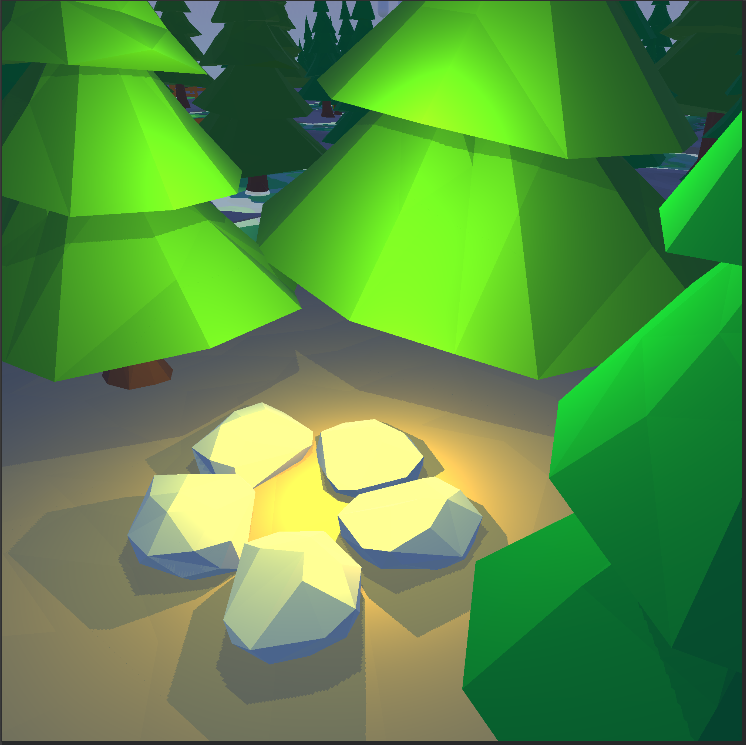
Minimum Setup
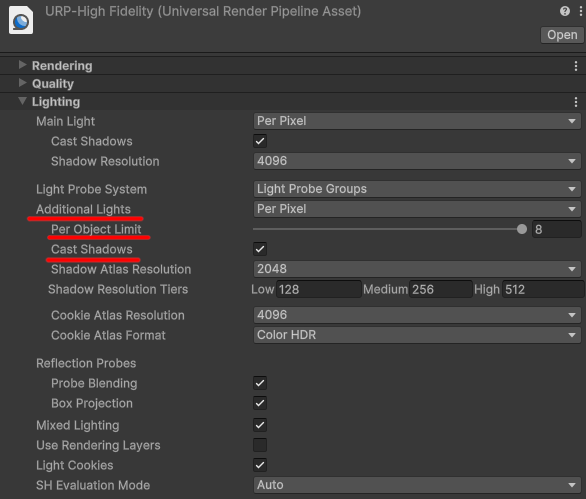
Open your URP Render Pipeline Asset (Project Settings → Graphics → Scriptable Render Pipeline Settings or the asset directly in the Project window).
- Set Additional Lights rendering mode to Per Pixel.
- Set Per Object Limit to any value higher than 0.
- Enable Additional Light Shadows.
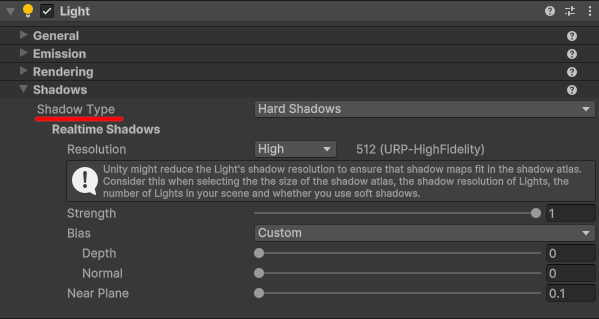
In your scene, select each Light that should cast shadows:
- In the Light component activate Shadow Type.
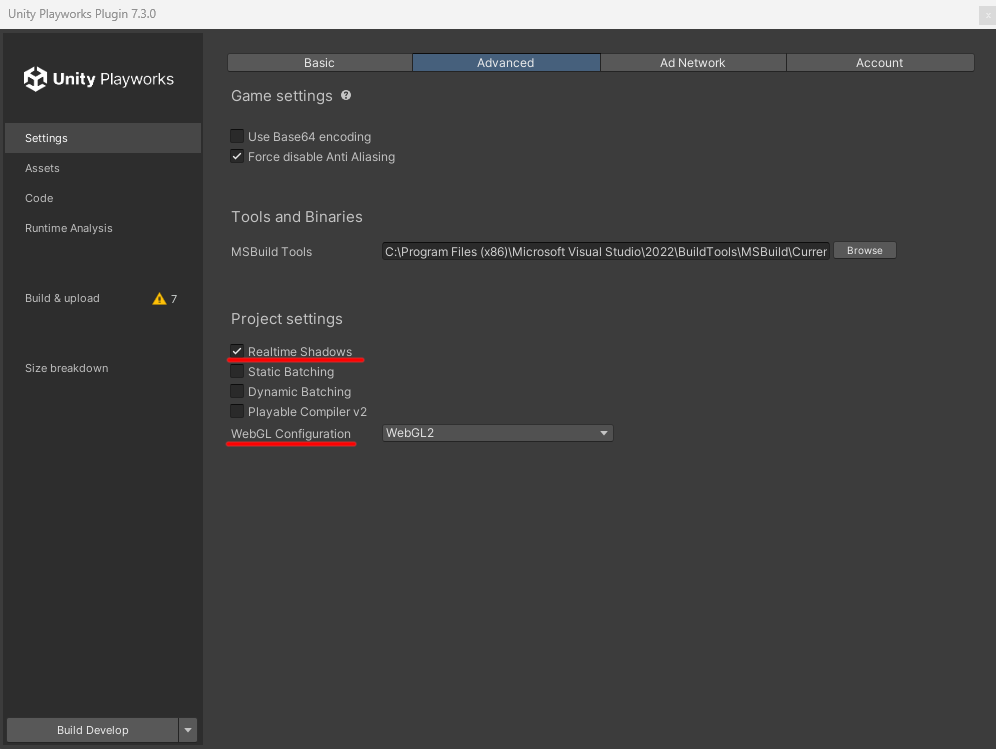
Open the Unity Playworks Plugin window and enable shadows:
- Check Realtime Shadows in Settings → Advanced.
- Set WebGL 2.0 (in Unity 6 always active).
Limitations
| Parameter | Unity | Standard GPUs | Low-end GPUs* |
|---|---|---|---|
| Additional lights per camera | 256 | 32 | 16 |
| Additional lights per object | 8 | 8 | 8 |
| Max shadow-casting lights per camera | ≥42 | max 5 | max 2 |
| Point light shadows | Yes | Yes | Yes |
| Spot light shadows | Yes | No | No |
| Directional light shadows | No | No | No |
| Soft shadows | Yes | No | No |
*Low-end devices are detected based on the device's WebGL capabilities and are automatically recognized by the Playworks Plugin.
Performance Notes
Each shadow-casting Light can add significant rendering cost.
Recommendations to reduce performance impact:
- Limit the number of shadow-casting Lights.
- Use a lower Shadow Resolution Tier (Low or Medium).
- Use a smaller Shadow Atlas Resolution in the URP asset.
- Disable Cast Shadows on Point Lights that do not meaningfully contribute to the visual result.